Multiple choice questions are the most popular question type on the internet, and for good reason. They take people seconds to answer, they give you clean data, and they turn straight into charts without any spreadsheet work.
This guide shows you how to make multiple choice forms, quizzes, surveys and polls online with Tapzy's form builder. You'll find step-by-step instructions, real examples you can copy, and tips that get more people to finish your form. No coding or design skills needed.
What is an online multiple choice form?
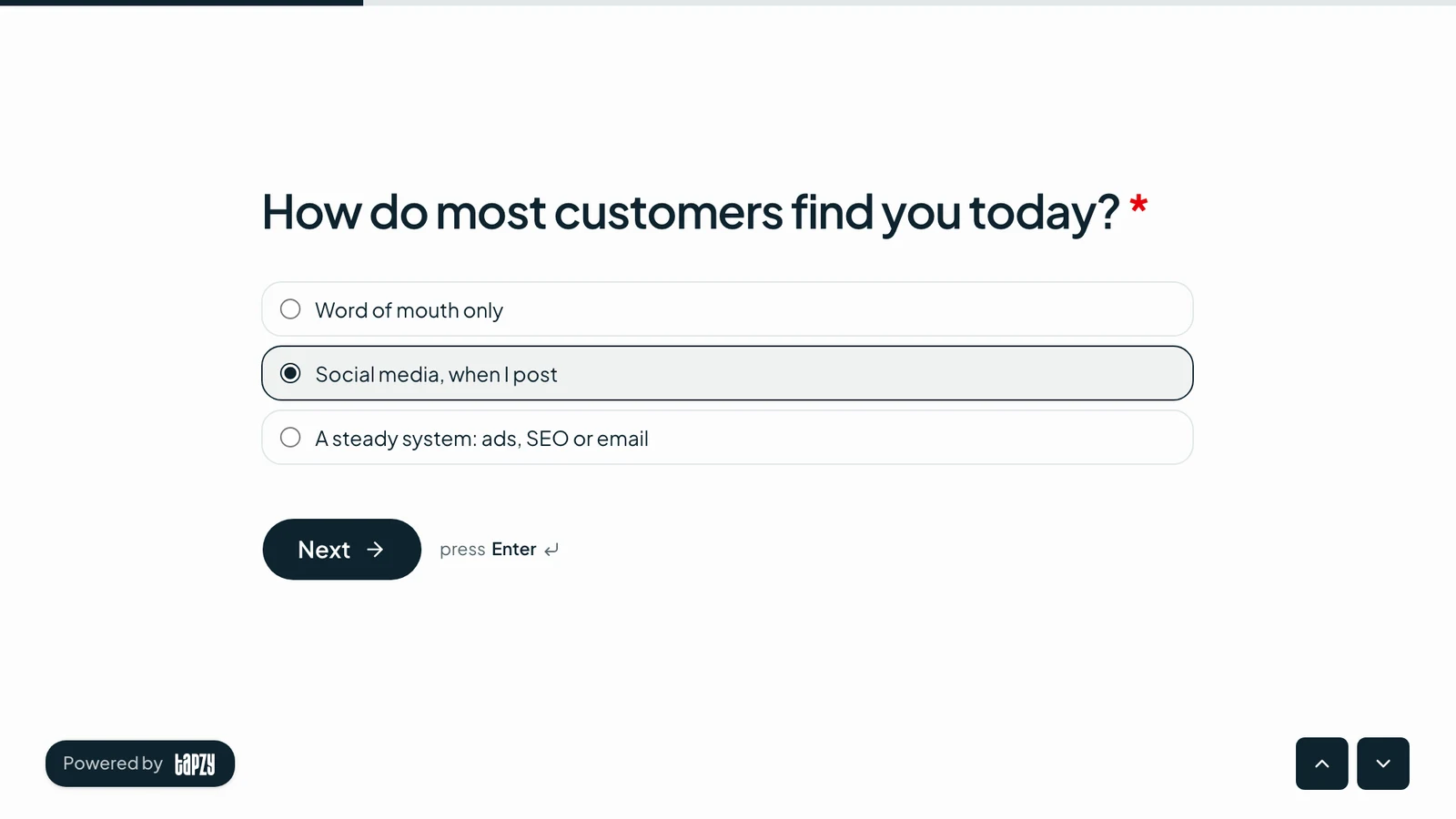
An online multiple choice form is a web form where people answer by picking from a list of options instead of typing. It works on any phone or laptop, and you share it with a link. Most multiple choice questions come in one of these formats:
| Format | What the respondent does | Best for |
|---|---|---|
| Multiple choice | Picks one option from a visible list | Quizzes, polls, simple surveys |
| Dropdown | Picks one option from a collapsed menu | Long lists (countries, departments) |
| Checkboxes | Ticks every option that applies | “Select all that apply” questions |
| Multi-select | Picks several options from a compact list | Interests, tags, skills |
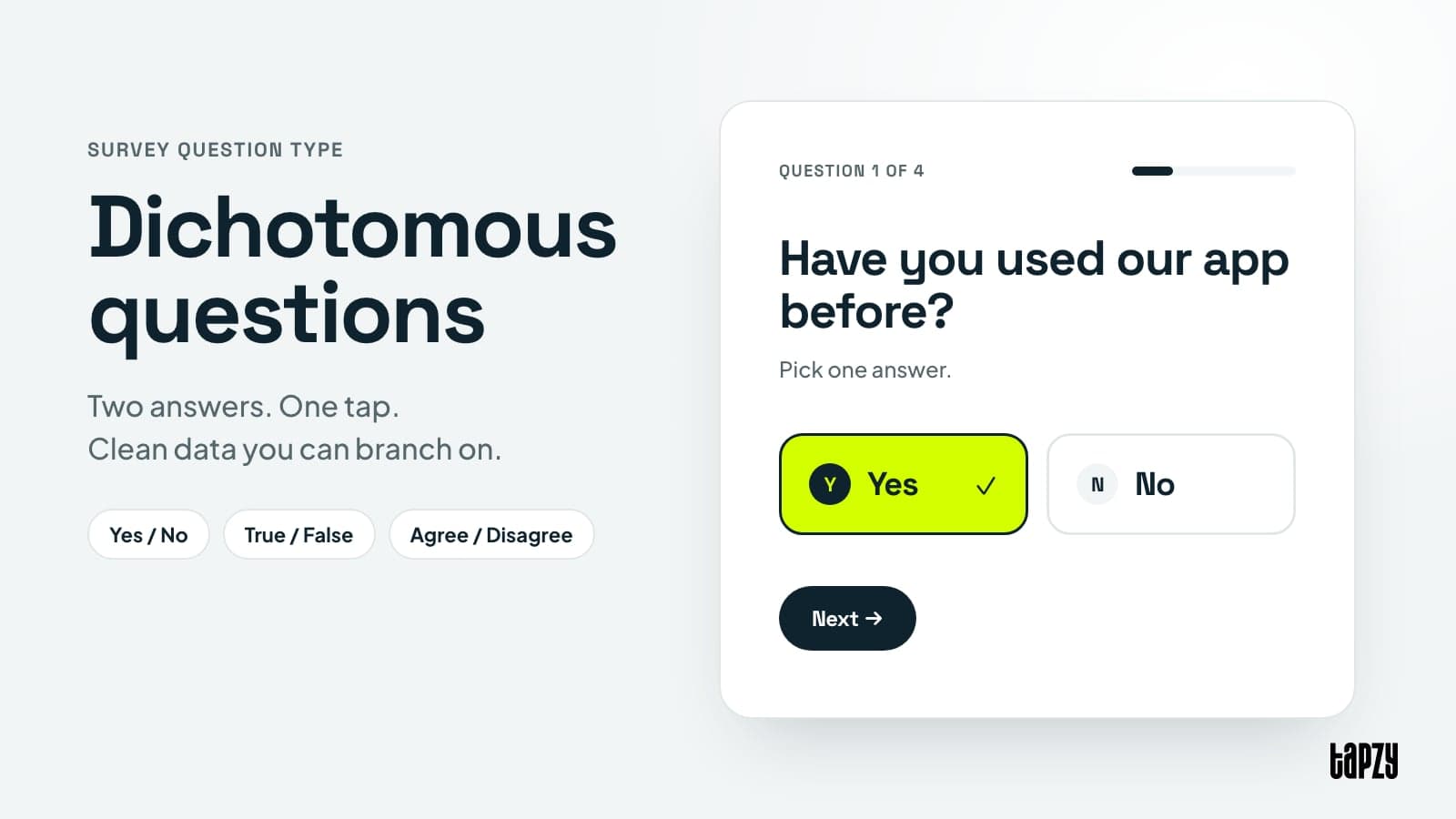
| Yes / No | Picks one of two answers | Quick qualifiers and consent |
| Ranking | Drags options into order | Priorities and preferences |
| Matrix | Rates several items on the same scale | Feedback on many things at once |
Tapzy supports all seven, so one form can mix a quick yes/no, a single-answer question and a “select all that apply” question without switching tools.
How to make multiple choice questions in Tapzy (step by step)
Here's how to build your first online multiple choice form. It takes about five minutes.
Step 1: Create your Tapzy account
Sign up for Tapzy and open your dashboard. Go to Forms and click Create form.
Step 2: Start from scratch, a template or an import
- Blank form: start with an empty canvas.
- Template: pick a ready-made form for leads, feedback, events, payments, creators or HR, then edit the questions.
- Import: bring an existing form over from Google Forms, Typeform, Tally or a CSV file, so you don't have to rebuild your multiple choice questions by hand.
Step 3: Add a multiple choice question
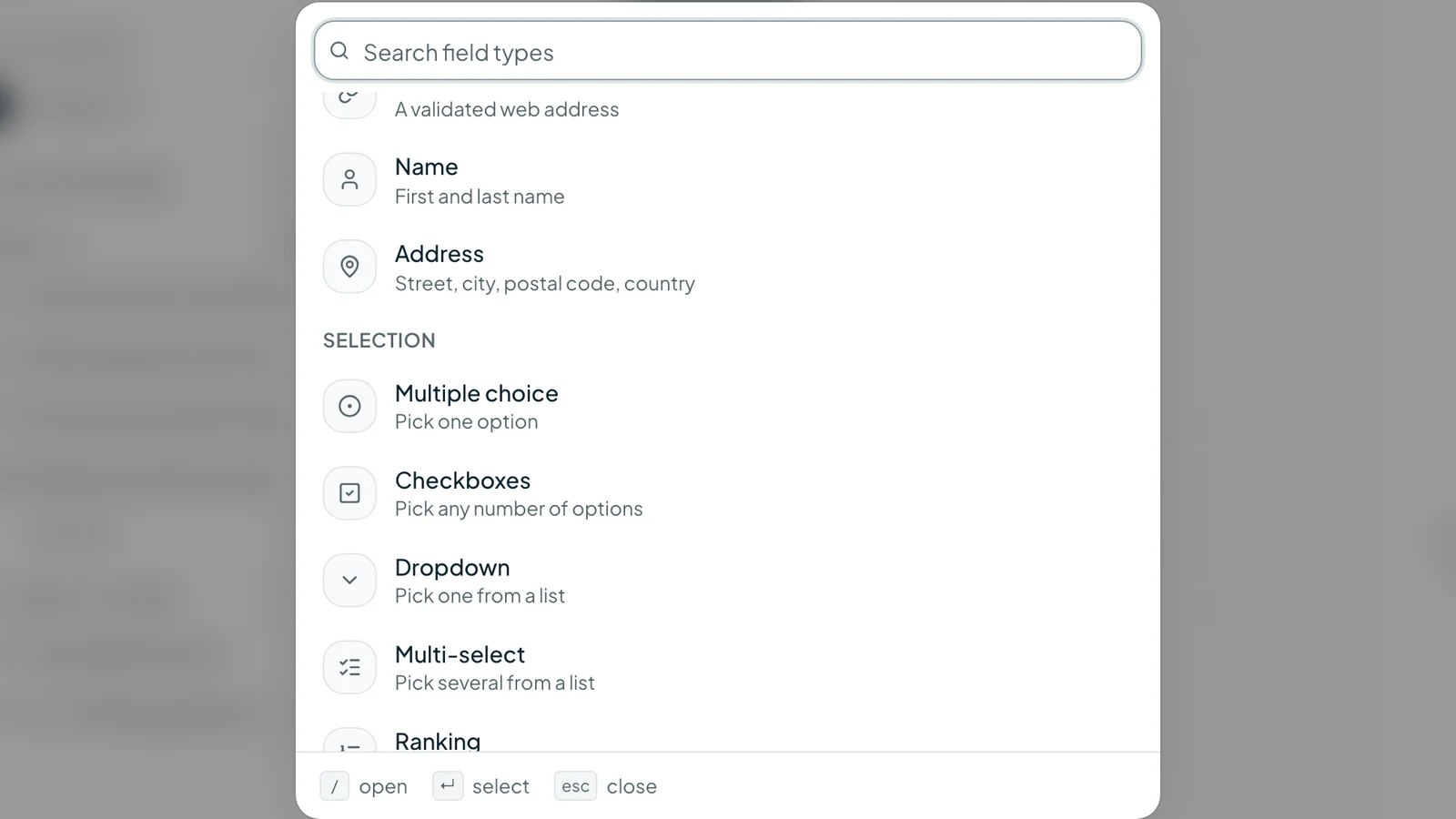
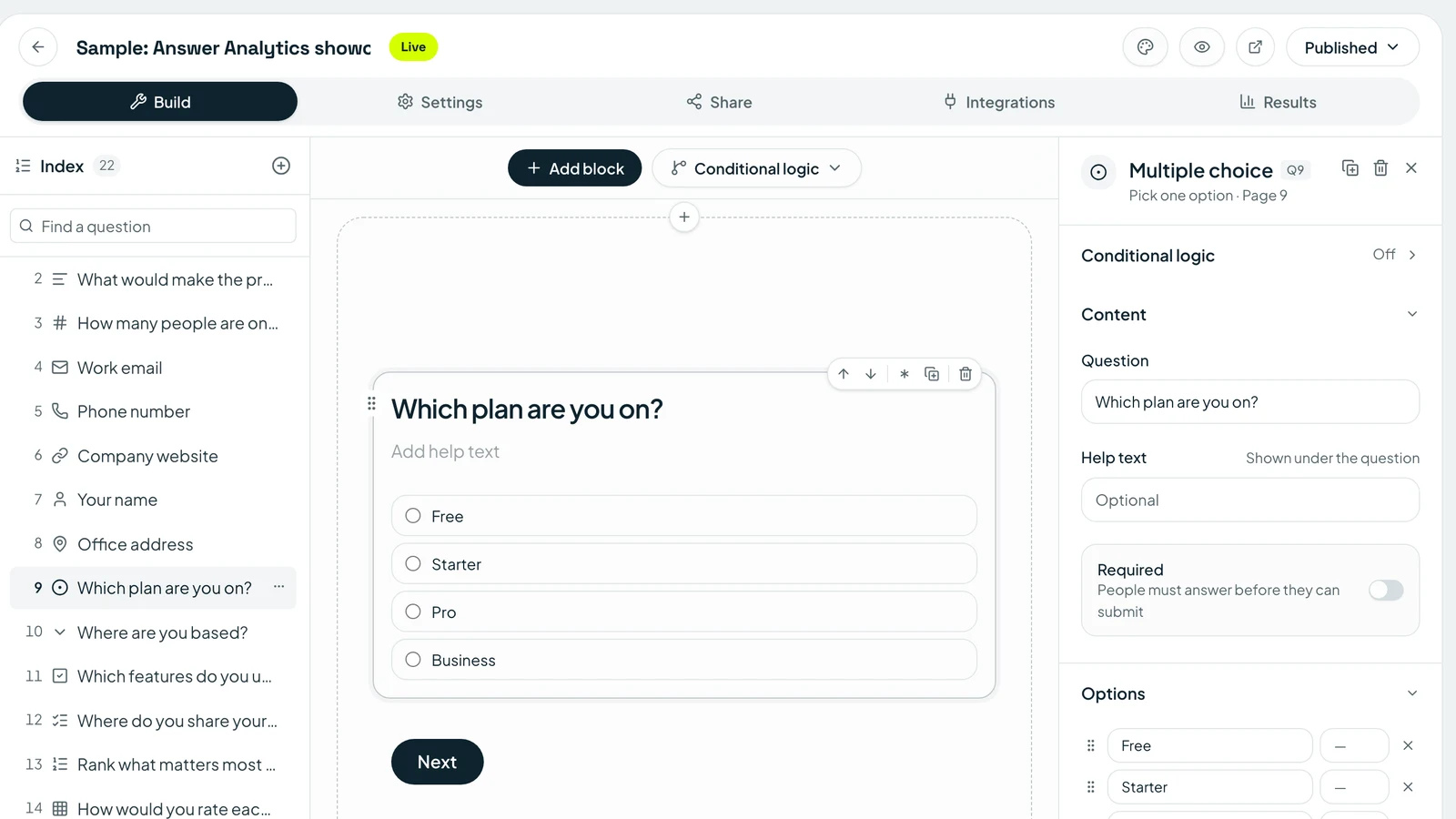
Click Add question and pick Multiple choice from the selection fields. Type your question, for example “How did you hear about us?”
Step 4: Write your answer options
Replace “Option 1” and “Option 2” with your own answers and add as many as you need. You can rename an option later without breaking past answers: Tapzy stores each answer against the option itself, not its text, so fixing a typo won't split your results in two.
Step 5: Turn on the options you need
- Add an “Other” option so respondents can type their own answer when none of yours fit.
- Randomize option order for every visitor to reduce order bias. Your results stay in the original order.
- Make it required so nobody skips important questions.
Step 6: Pick a layout and design
- One question at a time: a focused, conversational flow that suits quizzes and longer surveys.
- Single page: every question on one screen, ideal for short polls and registration forms.
Then open the Design panel to set your colors, fonts and logo.
Step 7: Add logic (optional)
Use conditional logic to show or skip questions based on earlier answers. If someone picks “I'm a teacher,” show classroom questions; if they pick “Student,” skip ahead. You can even send people to a different ending screen depending on what they chose.
Step 8: Publish and share
- Copy the link and post it on social media, email or WhatsApp.
- Embed the form on your website.
- Download a QR code for posters, classrooms and event tables, or design a custom one with our free QR code generator.
- Add the form to your Tapzy link-in-bio page so followers can answer without leaving your profile.
That's it. You've just made a multiple choice form online.
How to make a multiple choice quiz with automatic scoring
A quiz is just multiple choice questions with points attached. Tapzy scores answers automatically and can show the result the moment someone finishes.
- Add your questions with the Multiple choice, Checkboxes or Yes / No fields.
- Give each option a point value. Set the correct answer to 1 and wrong answers to 0, or use weighted scores like 3 for the best answer and 1 for a partly right one.
- Add a Calculated field to your thank-you screen that adds up the points from your quiz questions.
- Choose whether to show the score (“You scored 8/10!”) or keep it hidden and only see it in your results.
- Optional: add per-answer endings to send high scorers to a “Congratulations” screen and everyone else to “Here's what to review.”
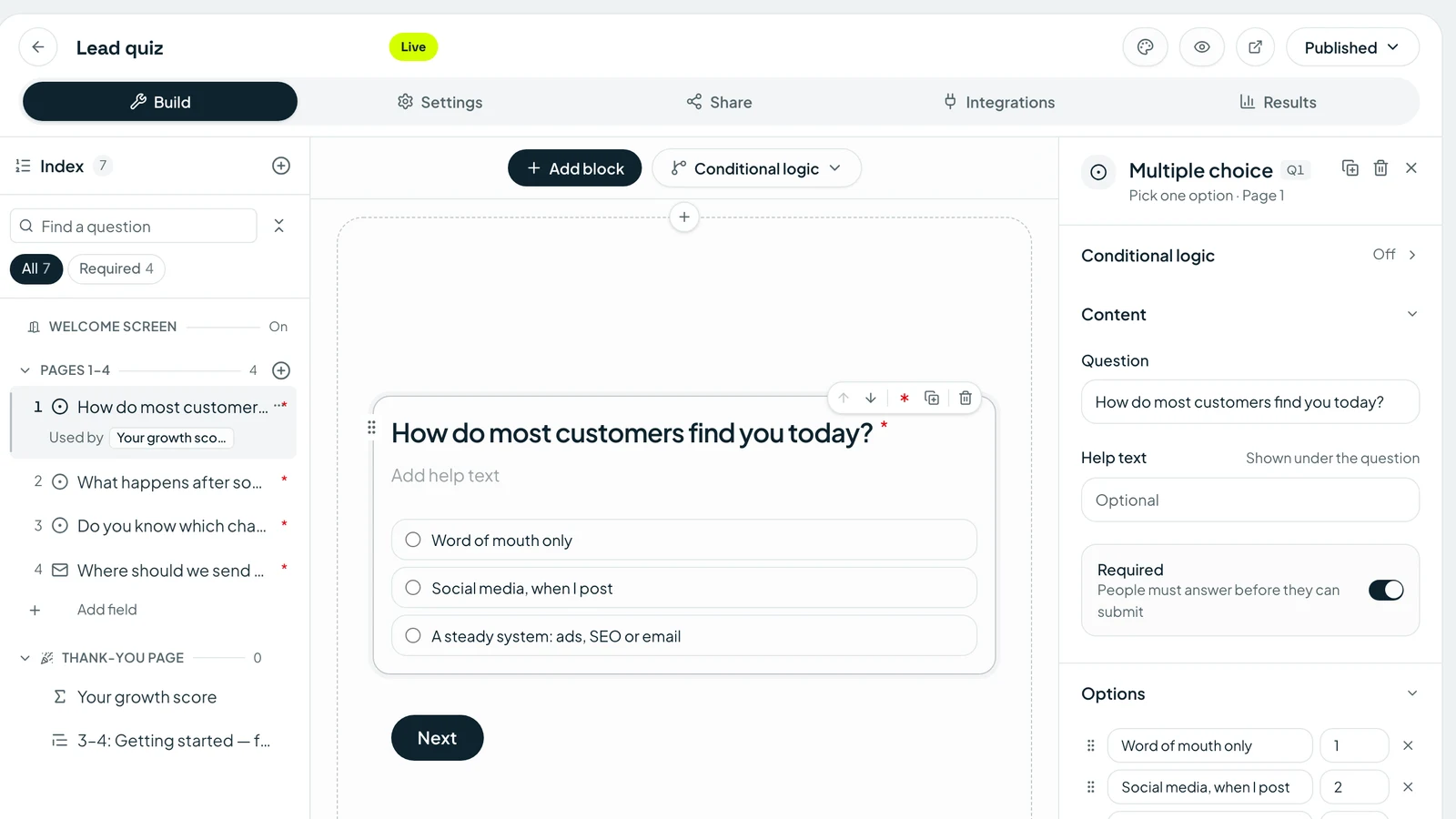
This works for classroom tests, training checks, personality quizzes (“Which plan is right for you?”) and lead-generation quizzes.
How to make a multiple choice survey
Surveys mix multiple choice questions with a few rating and open questions. A simple, effective structure:
- Screening question (Yes / No): “Have you used our product in the last 30 days?”
- Core questions (Multiple choice and Checkboxes): what they use, how often, why.
- Scale questions (Rating, NPS or Matrix): how satisfied they are.
- One open question (Long text): “Anything else you'd like to tell us?”
Use logic to skip sections that don't apply, so every respondent only sees relevant questions. Shorter surveys get more completed responses.
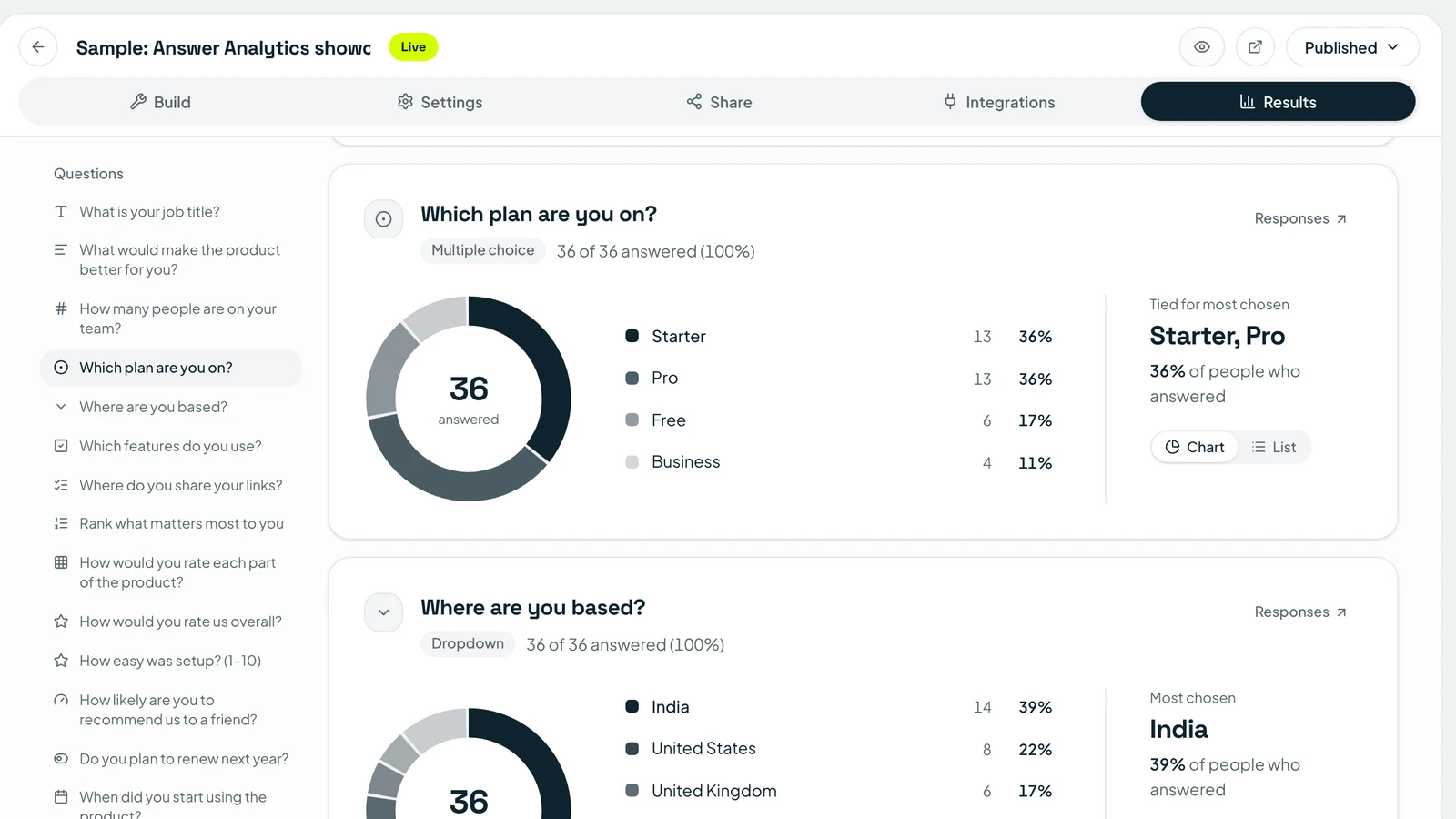
When results come in, Tapzy's Answers report turns each multiple choice question into a chart automatically. Share a live link to the report with your team and it updates as new responses arrive.
How to make an online multiple choice poll
A poll is the simplest online multiple choice form: one question, a few options, instant results.
- Create a new form and add a single Multiple choice question.
- Write 3 to 5 clear options.
- Pick the Single page layout so voters answer in one tap.
- Publish and share the link or QR code.
- Open Answers to watch votes come in, or share the live results link.
Polls are great for picking event dates, voting on a team lunch, choosing the next webinar topic or asking followers what content they want next.
Real-world use cases for online multiple choice forms
Here's how different teams use multiple choice questions in Tapzy:
- Weekly quizzes with automatic scoring
- Pre-course knowledge checks
- End-of-session feedback
- Lead-generation quizzes (“Find your perfect plan”)
- Customer and product feedback surveys
- Webinar registrations with session choices
- Audience polls from a link-in-bio page
- Giveaway entry forms
- Content-preference surveys
- Employee pulse surveys
- Job application screening questions
- Training and compliance quizzes
- RSVPs with meal and session choices
- Ticket type selection with payment in the same form
- Post-event satisfaction surveys
Key features for online multiple choice in Tapzy
- Seven choice question types: multiple choice, dropdown, checkboxes, multi-select, yes/no, ranking and matrix.
- “Other” option with a free-text answer.
- Randomized option order to cut bias and answer sharing.
- Quiz scoring with per-option points and a calculated score on the thank-you screen.
- Conditional logic and per-answer endings to personalize every path.
- One-question-at-a-time or single-page layouts with full custom branding.
- Automatic charts for every multiple choice question, plus a live shareable report.
- Import from Google Forms, Typeform, Tally or CSV.
- Share anywhere: link, website embed, QR code or your Tapzy bio page.
- Integrations with Google Sheets, HubSpot, Notion and webhooks.
- Payments with Stripe, so a ticket or product choice becomes a checkout.
- Email notifications for you and your respondents.
Tracking where responses come from? Tag your share links with the free UTM builder to see which channel brings the most answers.
Tips for writing better multiple choice questions
Good multiple choice questions are easy to answer and easy to analyze.
1. Ask one thing per question
“How happy are you with our price and support?” is two questions. Split it.
2. Keep options short and distinct
Respondents should never wonder whether two answers mean the same thing.
3. Cover every case
Add “Other” or “None of these” so nobody is forced into a wrong answer.
4. Don't overlap ranges
Use “18–24” and “25–34,” not “18–25” and “25–35.”
5. Use checkboxes for “select all that apply”
Don't make people pick just one when several answers are true.
6. Keep lists to about seven options
For longer lists, switch to a dropdown.
7. Randomize when order doesn't matter
People tend to pick the first option they see, and shuffling fixes that. Don't randomize ordered scales like “Poor → Excellent.”
8. Write believable quiz distractors
Wrong answers in a quiz should be plausible, or the question tests nothing.
Whether you're grading a class quiz, running a customer survey or asking followers a quick question, online multiple choice forms are the fastest way to get clear answers. With Tapzy you can make multiple choice questions in minutes, score quizzes automatically and see results as charts. Create your first form or browse the templates.